Showing posts with label display. Show all posts
Showing posts with label display. Show all posts
Friday, April 29, 2016
How to restore Ubuntu 12 04 display resolution
Ubuntu 12.04 can lose its display resolution if it can no longer detect your display device. For example, the next time you boot your Ubuntu 12.04 PC, you might find that your display resolution has switched from 1280 x 960 to 800 x 600, which is nearly useless. Fortunately, this happens only rarely. In case you should be not so lucky, this document defines display resolution and explains how you might restore it in your Ubuntu 12.04 PC.
Note: Although this document applies specifically to Ubuntu 12.04, it also applies generally to other Ubuntu releases.
Defining display resolution
A 1280 x 960 (1280 columns by 960 rows of pixels) resolution displays 1,228,800 total pixels. In contrast, an 800 x 600 resolution displays only 480,000 total pixels, which reduces overall display resolution by 61%. For more information, please see Resolution, by Ted Hewitt at Riverside Community College.
A 1280 x 960 (1280 columns by 960 rows of pixels) resolution displays 1,228,800 total pixels. In contrast, an 800 x 600 resolution displays only 480,000 total pixels, which reduces overall display resolution by 61%. For more information, please see Resolution, by Ted Hewitt at Riverside Community College.
Restoring Ubuntu 12.04 display resolution
If you lose normal display resolution on your Ubuntu 12.04 PC, you might restore your resolution by re-enabling display detection as follows:
If you lose normal display resolution on your Ubuntu 12.04 PC, you might restore your resolution by re-enabling display detection as follows:
- Turn off your display, and then disconnect its AC power cord.
- After waiting longer than 15 seconds, reconnect the AC power cord to your display, and then turn it on.
- Reboot your Ubuntu 12.04 PC.
- As shown in Figure 1 below, in the launcher, click the System Settings icon to display its window.
- As shown in Figure 2 below, in the Hardware section, click the Displays icon to display its window.
- Click Detect Displays to detect your display.
- Select a resolution, such as 1280 x 960 (4:3), and then click Apply to change the resolution.
- If you like your selected resolution, click Keep This Configuration to display a window similar to Figure 3 below.
Note: For additional information about trouble-shooting Ubuntu display resolution, please see Why cant Ubuntu 12.04 detect my screen resolution?.
 |
Figure 1 - Clicking the System Settings icon in the launcher. |
 |
Figure 2 - Clicking the Displays icon in the System Settings window. |
 |
Figure 3 - This is the Displays window for an example restored resolution. |


Sunday, April 24, 2016
Using Ubuntus heads up display HUD
The Ubuntu 12.04Unity interface includes a heads-up display (HUD) that gives you an alternative to navigating through menu paths. If you remember a command (or part of it) that is the path target, you can use HUD to search for that command and execute it directly.
Read more »
Using HUD to execute commands - You can use HUD to search for and execute commands, which you can also access through traditional menus. To use HUD, do the following:
- Press Alt to display HUD as the "Type your command" search field.

- Start typing the command you want (or part of it) until HUD displays it as an item in a menu path.
- To execute a command, such as for opening a window, click on the command. Alternatively, you can scroll to it and press Enter.
Note: Executing a command closes HUD automatically. To close HUD before you execute a command, press Alt.
Example system commands - System actions you can perform through Ubuntu HUD commands include:
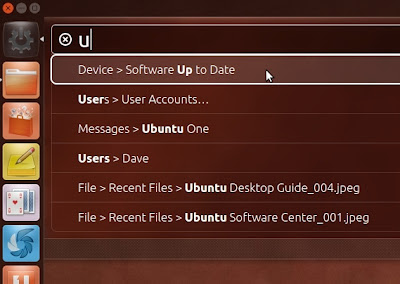
- Launching the Update Manager by typing u and then clicking Device > Software Up to Date.
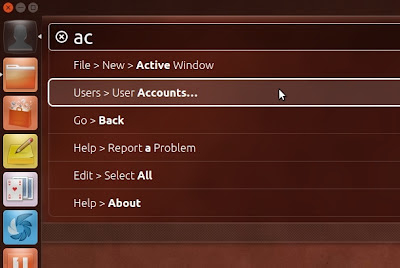
- Displaying the User Accounts window by typing ac and then clicking Users > User Accounts.
Example GIMP commands - The GNU Image Manipulation Program (GIMP) is an application that lets you perform actions through its associated HUD commands.
Note: HUD works only with applications that use the Unity global menu bar, such as GIMP, Chrome, and Image Viewer.
GIMP actions you can perform through HUD commands include:
- Displaying the Scale Image window by typing sc and then clicking Image > Scale Image.


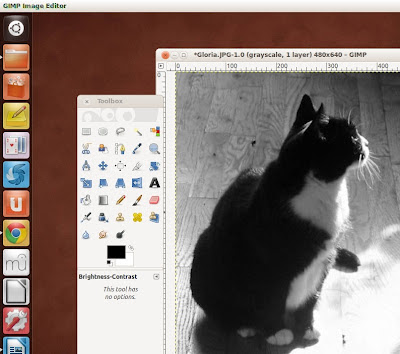
- Displaying the Brightness-Contrast window by typing br and then clicking Colors > Brightness-Contrast.


- Converting an image from RGB (full color) to monochrome (black and white) by typing gra and then clicking Image > Mode > Grayscale.

Friday, April 22, 2016
HOW TO MOUNT MS WORD DIGITAL DRAWING FOR DISPLAY
MICROSOFT WORD DRAWING PROJECT No. 32
TITLE: HOW TO MOUNT MS WORD DIGITAL DRAWING FOR DISPLAY
TYPE: FINE ART
Over the years I have created many drawings, paintings and prints and mounted some of them on the wall of my house. I have never sold any of my works and normally use them for my books illustrations. After I wrote a book on this subject 10 years ago, I started to mount and display MS Word Drawings like any other fine art works. Even though the works are much smaller in size (A4), well, why not?
Do readers still remember the fine art digital drawing depicting squids swimming in the sea in MS Word Drawing Project No. 20? It would be a waste to let it sit in the virtual space. Why not print it out and mount it on your living room or dining room wall so that it can be viewed by other people. By doing so, you’re bringing the digital visual art work out into the real-world. Many years ago, I read a computer art book published by Hayden Books in 1998 which inspired me to pursue computer graphics as works of art. The title of the book is Fine Art Photoshop Lessons in Digital Drawing and Painting by Michael J. Nolan and Renèe LeWinter. This book contains lessons in digital drawing and painting with Photoshop where it combines the traditional methods of art with digital technology to produce works of art. I believe that digital art or computer art is slowly breaking onto the contemporary art scene especially in this 21st century. This reminds me of the arrival of pop art on the art scene in the 1960’s which made an impact and then became a part of the modern art scene.
In this project, I’ll show readers how to mount a picture created in MS Word to be displayed as a work of art. The three important things needed to mount a picture are as follows - picture frame, mounting board and the creative piece of work. Anyway, the illustration can be printed on A4 size paper (21 cm x 29.7 cm). Choose a frame that is slightly bigger than the picture. It’s better to get a frame with a matte-surface glass. Choose the glass with matte surface because a glossy surface will reflect light. Cut out a window from a piece of mounting board so that the picture fits nicely within the space of the window. I prefer to use stick glue or Scotch tape to stick the picture on the reverse side of the mounting board to hold it in place. About two or four pieces of tape will do the job. I love to use Scotch tape to repair torn documents and books because it won’t turn yellowish over a long period of time.
After having the work framed, the final task is to label the work. A label is important because it gives some information about the work. I always tell my students to give a suitable title for every work of art they have done and avoid naming their work “Untitled”. Generally, a work of art is labelled with the following details:
1. Name
2. Title
3. Year
4. Medium
5. Size
6. Location / Place (optional).
In other words, a work of art such as a drawing or a painting is labelled like this: Chang Hon Woon, Squids Swimming in the Sea, 2011, MS Word digital drawing, 19.5 x 28 cm, Malaysia. Visual Art Education teachers can use this MS Word drawing project to teach Drawing and Art Composition in class. Introducing the element of variety in teaching approach helps maintain a high level of interest in the learning of visual art.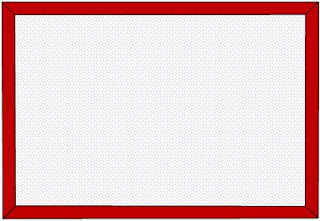
The picture frame with matte-surface glass.
The mounting board with a window and a border drawn around it.
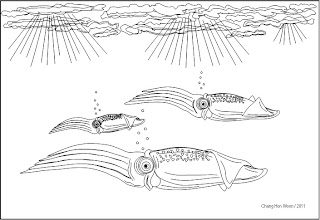
The picture of squids swimming in the sea.
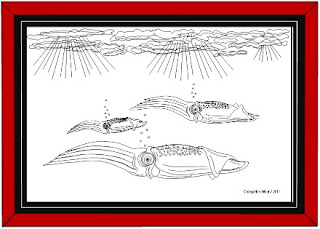
If all go well, the mounted picture should look like this. I hung this picture in the kitchen. It just happens that one of my favourite dishes is squid.
Sunday, April 10, 2016
HOW TO MOUNT MS WORD DIGITAL DRAWING FOR DISPLAY PART 2
MICROSOFT WORD DRAWING PROJECT No. 34
TITLE: HOW TO MOUNT MS WORD DIGITAL DRAWING FOR DISPLAY PART 2
TYPE: FINE ART
Still remember Project No. 30 that shows how the drawing of a half apple can be done in MS Word? Now you have learned how to draw a tangerine, right? Why not use these two drawings to create a still life composition that can be mounted on the wall. Please refer Project No. 32 for information on how to mount a piece of artwork for display. Art teachers can make use of this activity to teach composition and balance. In a visual art composition, elements, subjects or images are arranged in a given space such as the space on a piece of drawing paper resulting in a visually balanced work. The principles of design are used to help achieve unity in the overall composition and thus creating a quality work of art. Knowledge in Basic Design or Visual Art Theory has its advantages because it enables the artist to explain in elaborate details about his or her work of art. That is why the topic of Art Appreciation is also taught in Art Class.

Chang Hon Woon, Half Apple and Tangerine on Marble Table, 2012, MS Word digital drawing and photography, 19.5 x 28 cm, Malaysia.
All these drawings were created by the Curve line tool. Finally, add in the shadow effects and you’ll have a piece of work like the one above. Here’s another piece of work that is suitable to be mounted on the dining room wall.
Thursday, February 11, 2016
Adjusting your Linux Mint display resolution
Linux Mint is a popular distribution of the Linux operating system. Linux Mint has a relatively-high default resolution, such as 1400 X 1050, at which many people over 30 find text hard to read. This document explains how to select the recommended display driver for your Linux Mint PC, and then adjust the resolution of your Linux Mint display to a lower value, such as 1152 X 864, to make screen text easier to read.
Note: The procedures below apply specifically to Linux Mint 15, Cinnamon, and generally to all other recent editions of the Linux Mint distribution.
Selecting the Recommended Display Driver
To select the recommended display driver for your Linux Mint PC, do the following:
- Click Menu (at lower-left corner of its screen) to display the menu.
- Click the System Settings icon (third down at left) to display the System Settings window as shown in Figure 1.
- As shown in Figure 2, scroll to the Hardware section, click Device Drivers, type your password and then click OK to display the Driver Manager window.
- If you are not already using the recommended driver, select it and then click Apply Change.
- Reboot your PC, and then adjust your display resolution according to the procedure below.
 |
| Figure 1 - The System Settings icon in the Linux Mint menu lets you display the System Settings menu. |
 |
| Figure 2 - The Device Drivers icon lets you display the Driver Manager window. |
To adjust the display resolution of your Linux Mint PC, do the following:
- Select the recommended display driver according to the procedure above.
- Click Menu (at lower-left corner of the screen) to display the menu.
- Click the System Settings icon (third down at left) to display the System Settings window.
- Click Switch to Advanced Mode (at lower left), scroll to the Hardware section and then click Display to display its window as shown in Figure 3.
- In the Resolution field, click the drop-down arrow to display all available resolutions.
- Click a resolution to select it, and then click Apply to momentarily blank the screen and then display your selected resolution for 30 seconds. If you like your new resolution, click Keep this Configuration. Otherwise, Linux Mint restores your original resolution at the end of the 30 seconds.
 |
| Figure 3 - The Display window lets you adjust the resolution of your display. |
Subscribe to:
Posts (Atom)
